Authors
Everything in this page is done from AdminCentral. You never edit a file.
The AI Chat
There are two ways in, and both open the same conversation:
- The 🤖 button in the top bar, next to the app launcher. It slides a chat panel in over whatever you are working on, and closes with the ✕ in its header. This is the one to use while editing: the assistant is told which app you have open, so "add a hero to this page" makes sense without you spelling out where you are.
- The [H1] AI › AI Chat app, from the launcher. The same chat as a full-screen app, for when you want room to read.
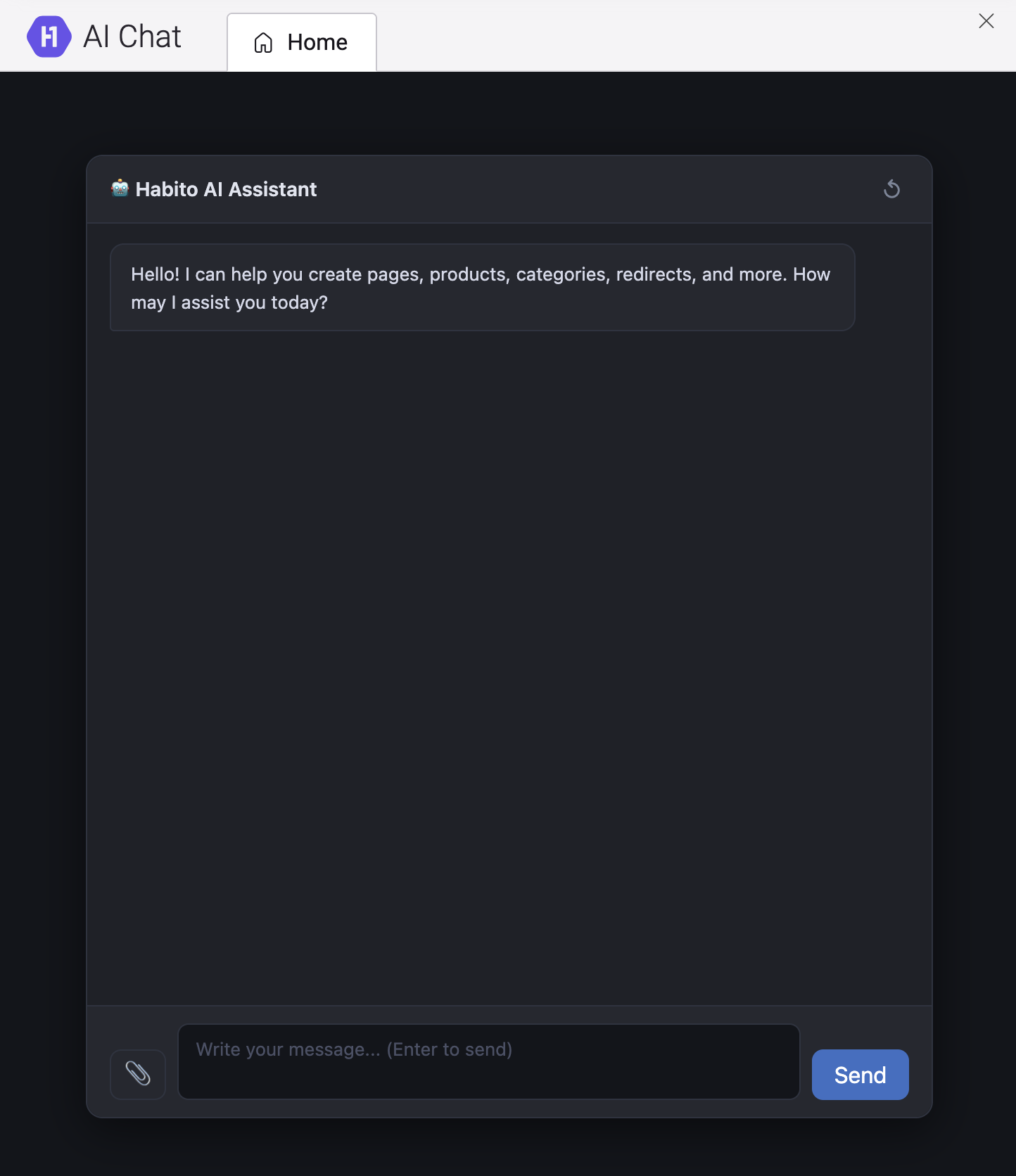
Type your request and press Enter — or click Send. Replies come back formatted, so lists and paths are readable.
What you can ask it for
It works on real content, with the same rules the forms apply to you. In practice:
| You can ask it to | It does |
|---|---|
| Create a page | Adds it under the page or site you name, with its template, its title and any of its fields. |
| Build the body of a page | Adds components into an area — including nested ones — but only components that template actually allows there. |
| Change content | Sets the fields of a page or of one component. What you do not mention stays as it was. |
| Reorder a component | Moves it first, last, up or down inside its own area. It can never jump to another area. |
| Upload and use an image | Puts a file in the media library and hands you back its reference, ready to be used as an image field elsewhere. |
| Publish or unpublish | A page, a component's page, an item, or a whole branch when you ask for that. |
| Fix search metadata | Titles, descriptions and the rest of the SEO fields of a page or a catalogue item, when those features are installed. |
| Manage analytics scripts | Create or edit a marketing tag, where it is injected, and which pages it applies to. |
| Explain what exists | List the content types, the templates, or which components are allowed in an area. |
Ask for the change, not the mechanics: "create the page /services/ai with the base template, title 'AI', and add a hero with the title 'We build AI'" is one message. The assistant chains the steps itself, up to ten per message.
What it remembers
| The conversation | It remembers the thread you are in, up to the last 50 messages. |
| How long | 30 minutes of inactivity and the thread is forgotten. |
| Starting over | The ↺ button in the chat header drops the history and starts clean. Do that when you switch to an unrelated task, so earlier context does not leak into it. |
| Across reloads | Refreshing the page or closing the panel starts a new thread. The conversation is not stored with your user. |
Note — the assistant is not a search box over your content: it reads what it needs through the same tools it writes with. If it says it cannot find something, ask it to list the folder — that is usually enough for it to correct itself.
What it will refuse or ask about
The guardrails belong to the tools, not to the chat, so they are the same in every channel:
- Deleting, moving or renaming comes back first as a description of what would happen — how many things are affected — and only happens after you confirm.
- A required field left empty, a value outside a dropdown's options, or a reference to something that does not exist are refused with the reason.
- A component that the template does not allow in that area is refused, and it will tell you which ones are allowed.
If you want the whole picture of what an assistant may and may not do to your content, the Authors
page of h1-mcp-api describes it.
The [H1] AI tab
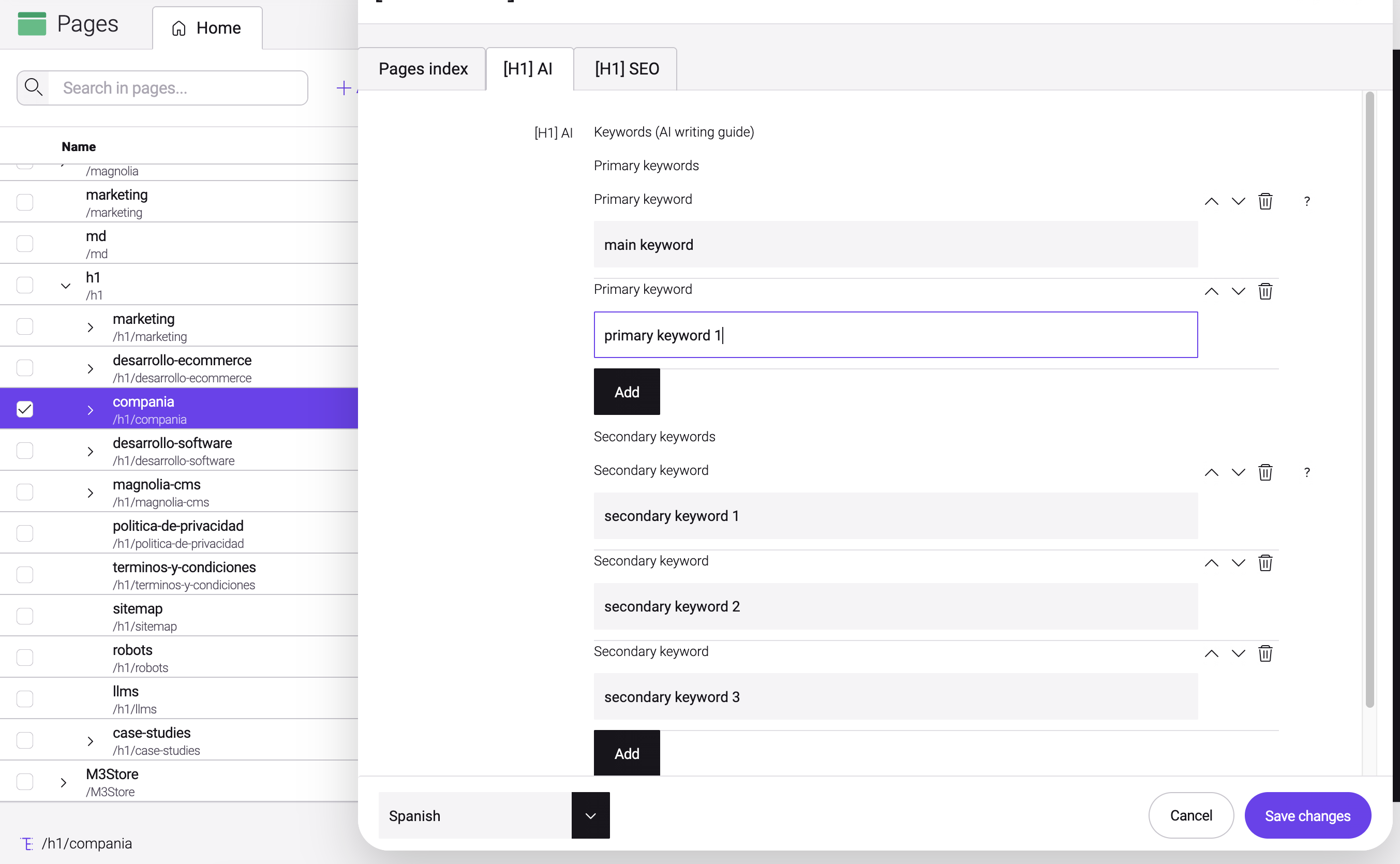
Page properties have a tab called [H1] AI, and so do the products and case studies forms. Inside it there is one panel, Keywords (AI writing guide), with two fields.
This is where you write down the keywords you want a piece of content to work — for the AI that drafts or rewrites it, not for Google.
| Field | What it does |
|---|---|
| Primary keywords | The main search phrases this content has to work. One entry each, most important first — the order is kept exactly as you leave it, and the arrows next to each entry are how you change it. Write real search phrases, not internal names: "running shoes for neutral gait", not "shoes-cat-3". |
| Secondary keywords | The supporting ones: synonyms, variants and long-tail phrases. Same rules, same ordering. |
Add adds an entry to a list; the bin next to an entry removes it.
Both are single lists shared by every language — there is no separate list per language.
Leave them empty and nothing breaks. The assistant simply has no guidance for that content and writes from the content itself. Nothing is invented to fill the gap, and no keyword is suggested back to you.
Warning — these fields are not published anywhere. They are not a meta tag, they are not in the sitemap, they are not in
llms.txtand no visitor or search engine ever sees them.
What happens on its own
- The order you type is the order that is stored. Nothing is re-sorted.
- Duplicates and blank lines are dropped when you save, and spaces around a phrase are trimmed.
- The assistant reads them before writing. When you ask it to draft or rewrite the copy or the search metadata of a piece of content, it looks the lists up first. What it does with them is its judgement — the fields are a note, not a rule.